
How to install Chrome extensions in a Chromium browser that isn't Chrome
Edge, Brave, Vivaldi, Opera and Selves can all run Chrome Web Store extensions, but each installs them differently. How it works, step by step, and the limits.
Almost every browser built on Chromium can run Chrome extensions, because they share the same extension platform underneath. What differs is how you get an extension in. Some browsers use the Chrome Web Store's own button, some need a setting switched on, and some, including ours, install through a different route. Here's how it works in the common ones, and in detail for Selves, since we built that part.
How the usual browsers do it
| Browser | Installing from the Chrome Web Store |
|---|---|
| Microsoft Edge | Open the Chrome Web Store, accept the "Allow extensions from other stores" prompt once, then use the store's button. Edge also has its own Edge Add-ons store. |
| Brave | Works directly from the Chrome Web Store. |
| Vivaldi | Works directly from the Chrome Web Store. |
| Opera | Has long relied on its own "Install Chrome Extensions" add-on to enable the Chrome Web Store. |
| Selves | Paste the extension's store link in Settings → Extensions, or click Add to Selves in the address bar on the store page. Restart to enable it. |
Stores and browsers adjust these flows from time to time, so a button may be worded differently from what's described here. The principle stays the same.
Why some browsers can't use the store's button
The "Add to Chrome" button doesn't install anything by itself. It talks to an installer that's built into Chrome's own interface, and other full browsers like Edge and Brave ship their own version of that machinery.
Selves is built differently. It uses CEF, the Chromium Embedded Framework, which gives us the Chromium engine without Chrome's interface. That's what lets us design our own sidebar, workspaces and accounts, but it also means Chrome's extension pages and the store's install flow aren't there. When we tested it, though, the extension runtime was complete: content scripts, background service workers, the declarativeNetRequest API that ad blockers use, popups and the chrome.* APIs all work. So Selves handles installation itself:
- It downloads the extension package (a CRX file) from the Chrome Web Store or Microsoft Edge Add-ons, the same way Chrome would.
- It reads the package's signed header and works out the extension's ID from the developer's public key.
- It unpacks the extension, rejecting any file that tries to write outside its folder, and records the developer's key in the extension's manifest so the installed ID matches the store's ID. That matters for extensions that talk to their own servers or to a desktop app, which recognize themselves by that ID.
- The next time Selves starts, the extension is loaded into every workspace and account.
Installing an extension in Selves, step by step
From a store link
- Find the extension in the Chrome Web Store or Microsoft Edge Add-ons and copy the address of its detail page. It looks like
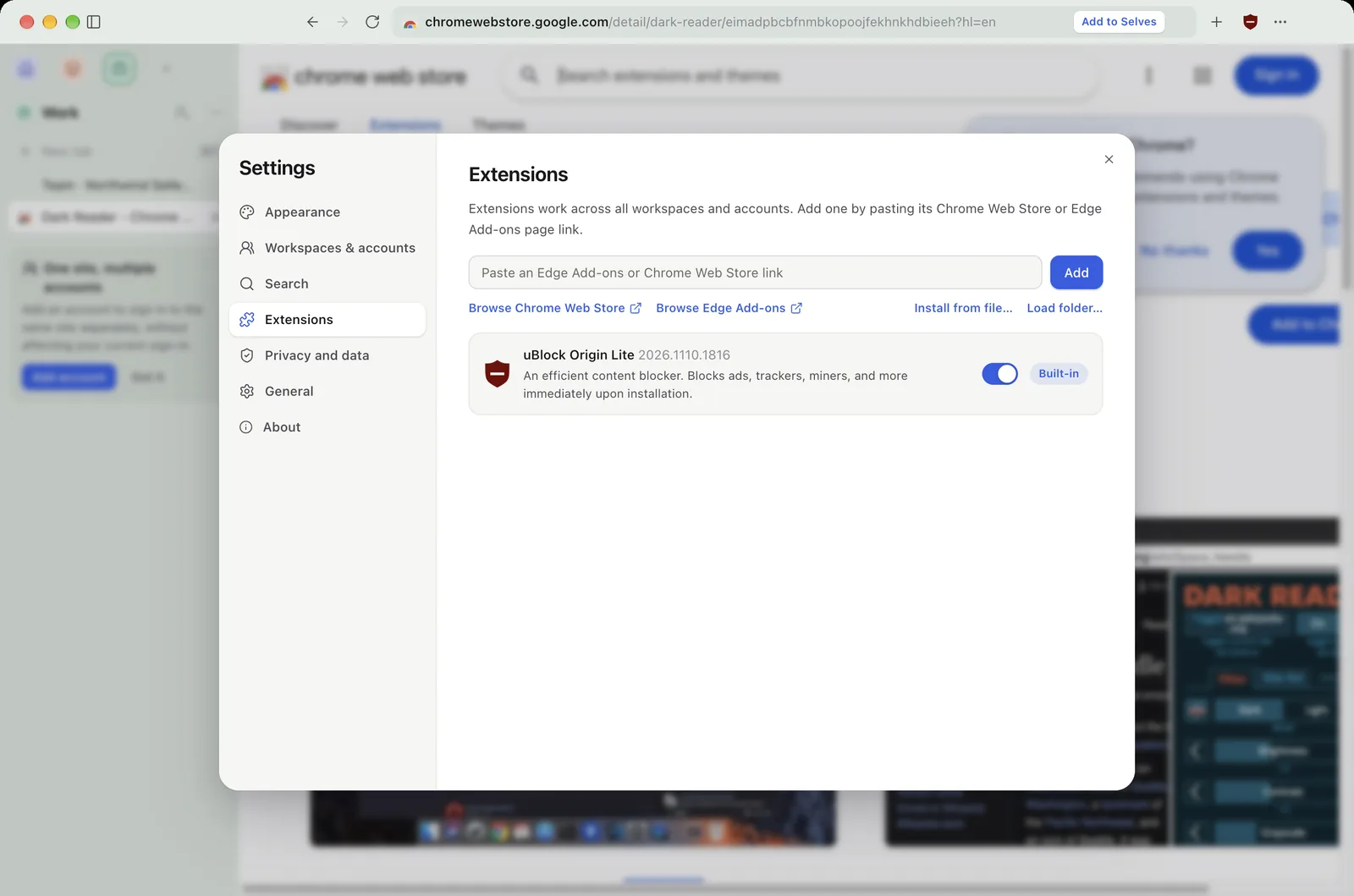
chromewebstore.google.com/detail/name/idormicrosoftedge.microsoft.com/addons/detail/name/id. - In Selves, open Settings → Extensions, paste the link and click Add. A bare extension ID works too.
- When Selves says the extension was added, click Restart now. After the restart it's available everywhere.
From the store page itself
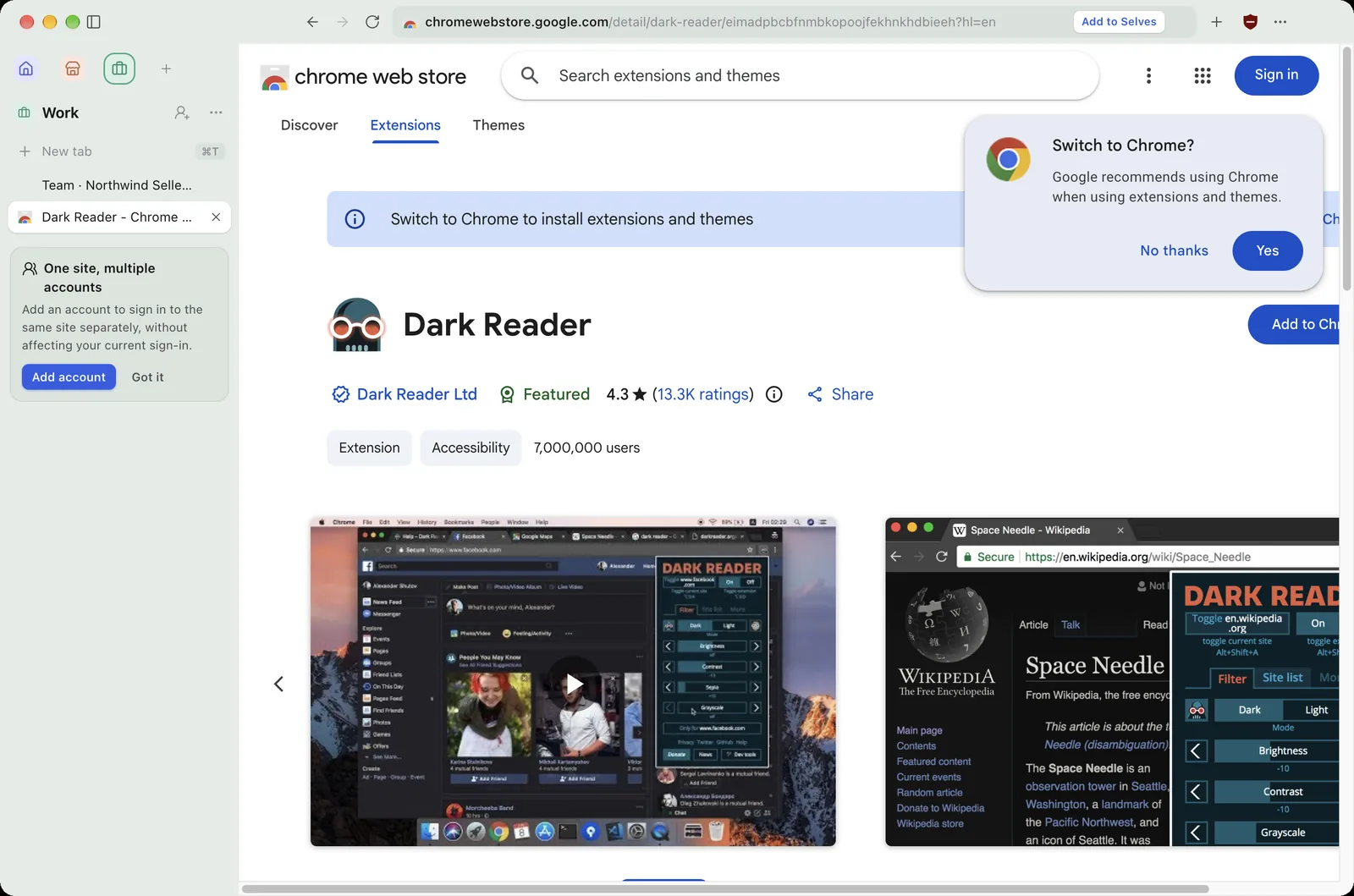
Open the extension's detail page in a Selves tab. An Add to Selves button appears in the address bar; click it and Selves downloads and installs the extension right there, then offers to restart. If you click the store's own Add to Chrome button out of habit, Chromium installs it into the current workspace only; Selves notices and takes it over, so after a restart it works in every workspace too.
From a file or folder
If you have a .crx or .zip package, use Install from file…. A .crx you download in Selves asks whether to add it, instead of opening in Chrome. Developers can load an unpacked extension with Load folder…. Packages that aren't signed by a store get their ID from the folder they're installed in, the same way Chrome treats unpacked extensions.
Chrome Web Store or Edge Add-ons?
Most popular extensions are published in both stores, and Selves installs from either. A few practical differences:
- Availability. Some extensions exist in only one store, and the version in each can differ, because developers publish to them separately.
- Different IDs. The same extension usually has a different ID in each store. Install it from one store only, or you'll end up with two copies that don't share settings.
- Reachability. In places where the Chrome Web Store can't be reached, such as mainland China, Edge Add-ons usually can. When you paste a bare ID, Selves tries the store that suits your region first, then the other.
What works, and what doesn't yet
Most extensions behave exactly as they do in Chrome: ad blockers, password managers, translators, dark-mode and productivity tools. The gaps are around Chrome's interface rather than the extensions themselves:
- No toolbar badges. An extension can't show a count or label on its icon.
- No extension items in right-click menus. Extensions that add commands to the context menu won't show them.
- Changes need a restart. Installing or removing an extension takes effect after Selves restarts.
- No background updates yet. Extensions don't update themselves automatically at the moment. You can check installed versions in Settings → Extensions.
- Current Chromium only. Selves follows current Chromium, so an extension has to be one that current Chrome can still run.
Extensions and multiple accounts
In Selves an extension is installed once and runs in every workspace and account. Each sign-in still gets its own copy of the extension's data, exactly like a separate Chrome profile would. In practice, that means you sign in to a password manager extension once per account, and settings you change in an extension apply to the sign-in where you changed them.
It also means an extension that can "read and change all your data on all websites" can do that in every workspace. That's normal for ad blockers and password managers, but it's a good reason to install only extensions you trust, from the official stores, and to remove ones you no longer use.
Is this a reason to switch browsers?
Probably not on its own. If you're happy in Chrome, Edge or Brave, they install extensions with fewer steps than we do. Extension support matters when you're choosing a browser for other reasons, such as keeping several accounts signed in at once or separating work and personal browsing, and you don't want to give up the tools you already use. If that's you, download Selves and add your first extension from a link; it takes about as long as reading this paragraph, plus a restart.
About this article
Written by the team that builds Selves, about the current version of the browser. If something here is wrong or out of date, email support@selvesbrowser.com and we’ll fix it.
Stop signing out. Start using Selves.
Free download. Set up your first workspace in under a minute.
Free · macOS, Windows and Linux