
Too many tabs and accounts? A practical system with workspaces, accounts and groups
A simple way to organize dozens of tabs and several logins: workspaces for what you do, accounts for who you are, groups for topics. With example layouts.
The standard advice for too many tabs is to close them. Sometimes that's right. But a lot of open tabs are open for a reason: they're the working set for a project, a client, a trip you're planning, or a second account you check every hour. The trouble usually isn't the number. It's that everything sits in one flat list, under one identity, so you can't put a whole context away and pick it up later.
This is the system we designed Selves around. It works best in Selves, but the thinking applies to any browser with profiles or tab groups.
Three levels, and one question to sort everything
Selves has three ways to organize tabs, and each answers a different question.
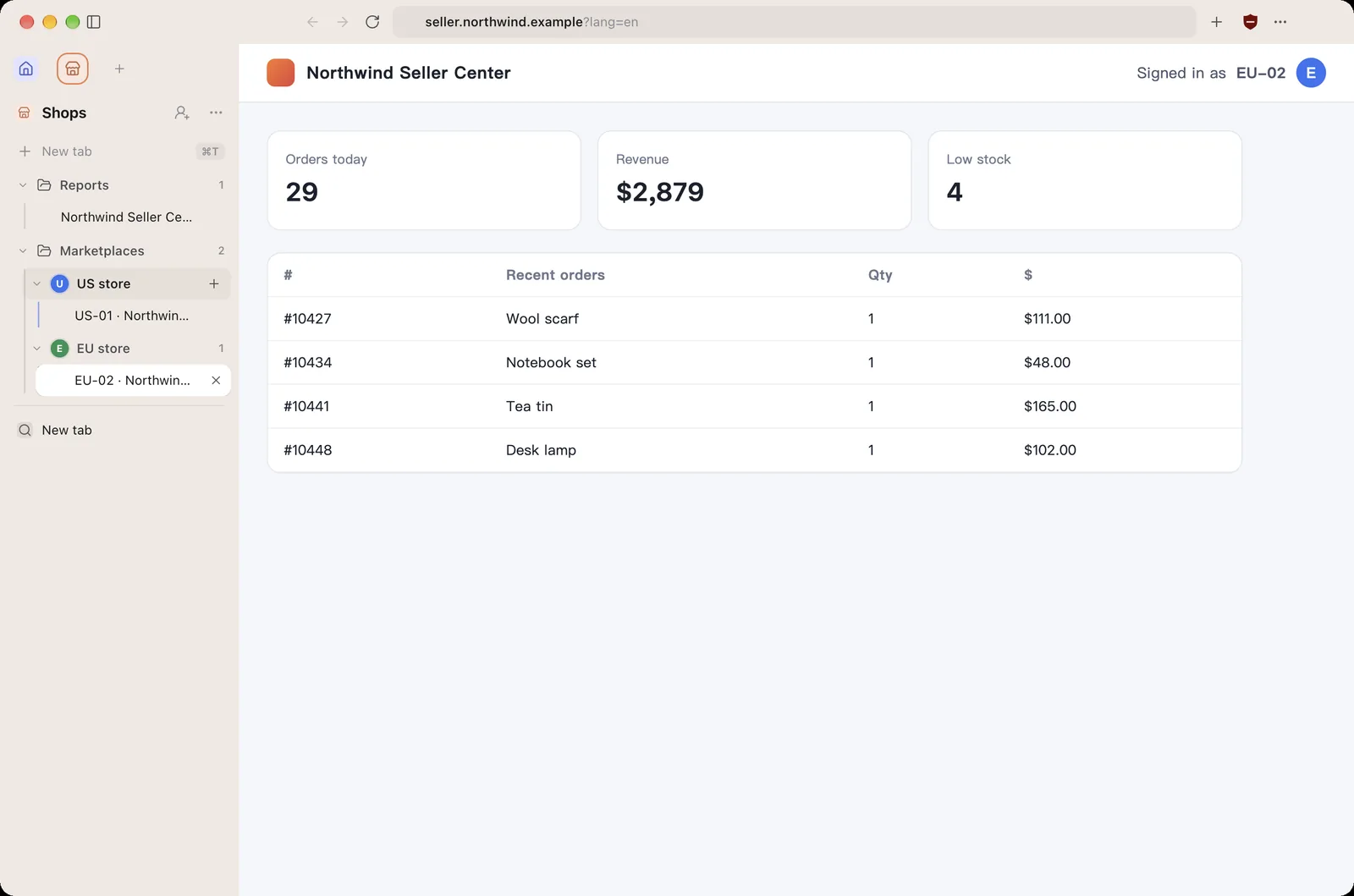
- Workspace: what am I doing? Personal, Work, a client, Study. Each workspace has its own tabs, pinned sites, color, icon and its own default sign-in. Most people need two to five.
- Account: who am I on this site? An account is a group of tabs inside a workspace with a separate sign-in, for the second login on the same site. It's marked with a round avatar.
- Group: what topic is this? A plain tab group, like "Research" or "Lisbon trip". Grouped tabs share the workspace's sign-in; a group is only about tidiness.
Then there are pinned tabs, the small grid of icons at the top of each workspace, for the handful of sites that are always open.
When a new tab doesn't obviously belong anywhere, ask one question: does it need a different login? If yes, it goes in an account. If it's a different part of your life or work, it goes in a workspace. If it's just a topic, it's a group. Most mistakes come from using a workspace when a group would do, or a group when you actually needed a second login.
The rules worth knowing
A few rules follow from how sign-ins work. They're simple, and knowing them prevents surprises.
- A tab's sign-in is its account, if it's in one. Otherwise, it's the workspace's. Plain groups don't change anything.
- Dragging a tab into or out of an account changes who it's signed in as. Cookies can't move with a page, so Selves reopens the page under the new sign-in. Anything you typed and didn't submit is lost, so finish the form first.
- Moving a whole account to another workspace keeps its sign-in. The login travels with the group.
- Pinned tabs inside an account stay in that account. Their icons carry the account's dot.
- New tabs follow where you are. Press ⌘T (Ctrl+T on Windows and Linux) while you're in an account, and the tab opens in that account. The + on an account's header does the same.
- Selves never creates groups or accounts for you. Typing in the address bar opens a page. Structure is always something you chose.
- Deleting is different from signing out. Delete account… closes its tabs and permanently removes its sign-ins and site data. Clear sign-in data for this account… signs you out of everything in it but keeps the tabs.
Four layouts that work
A freelancer with three clients
If each client gave you their own email, chat and documents, make a workspace per client. Their tools then share one sign-in, the client's color tells you where you are, and you can put a whole client away at the end of a project. If you only use one or two tools per client, a single "Clients" workspace with an account per client is lighter. Both work; the first scales better as each client's tab count grows.
A student
A Study workspace with a group per course, and a Personal workspace. If the university gives you a separate email or learning platform login that clashes with your own, add it as an account inside Study. Groups are free to make and don't count as sign-ins, so a group per course costs nothing.
Someone running several brand social accounts
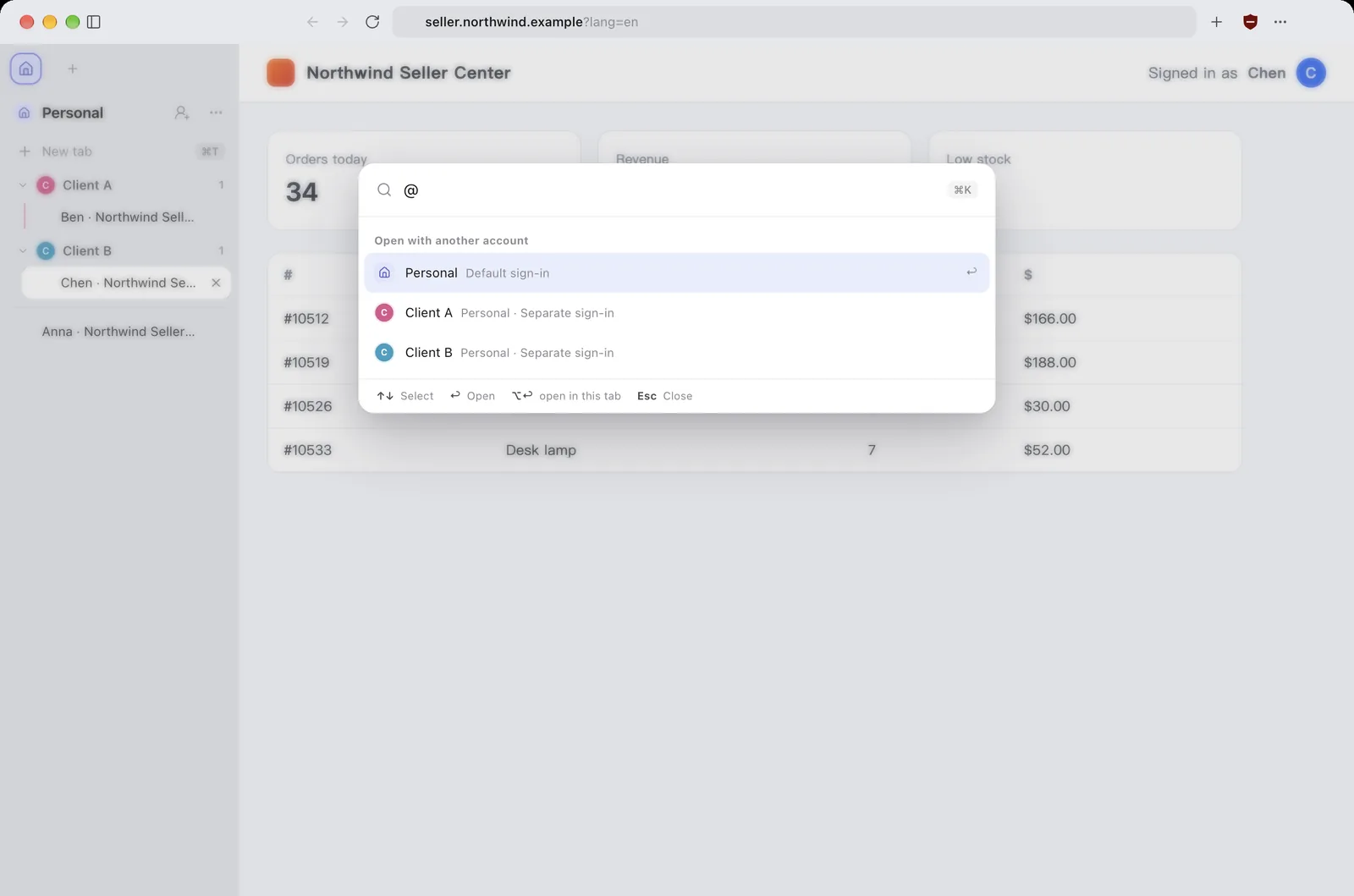
A Work workspace with an account per brand on the same network, each named after the brand, plus a plain group for analytics and scheduling tools. Right-clicking a link and choosing Open link with another account is the quick way to look at the same post as a different brand. (For marketplaces and shop dashboards, we wrote a separate guide that also covers what the platforms can still see.)
A shared family computer
A workspace per person keeps everyone's shopping and streaming logins from mixing. One honest caveat: workspaces aren't password-protected. Anyone using the computer can switch to anyone's workspace, so this is tidiness, not privacy. For real privacy between people, use separate user accounts on the computer itself.
Habits that keep it tidy
- Jump instead of scroll. ⌘K (Ctrl+K) searches open tabs, workspaces, bookmarks and commands. Control+1 to Control+9 on a Mac, or Alt+1 to Alt+9 on Windows and Linux, switch straight to a workspace.
- Let tabs sleep. Right-click a tab and choose Put tab to sleep to free its memory without closing it. It reloads when you open it.
- Close in bulk. Close other tabs and Close tabs below are on every tab's right-click menu, and Ungroup (keep tabs) dissolves a group without losing anything. Closed something by mistake? ⇧⌘T (Ctrl+Shift+T) brings it back.
- Hide the sidebar when you need room. ⌘\ (Ctrl+Shift+S) collapses it; clicking the workspace button in the toolbar slides it out as a drawer.
How many is too many?
The workspace grid at the top of the sidebar fits two rows. Beyond that, the last cell becomes "+N" and opens a list of all of them. If you regularly reach that, some workspaces are probably groups in disguise.
On the free plan you get three separate sign-ins, counting workspaces and accounts together. Groups and pinned tabs aren't sign-ins, so they're unlimited. Selves Pro removes the limit on sign-ins.
Where to start
Don't design the whole structure up front. Start with the workspaces you already think in, usually Work and Personal; we describe that setup in separating work and personal browsing. Add an account the first time you need a second login, and a group the first time a topic outgrows a handful of tabs. If you haven't tried it yet, download Selves. The first launch asks for just two things: a look you like and a name for your first workspace.
About this article
Written by the team that builds Selves, about the current version of the browser. If something here is wrong or out of date, email support@selvesbrowser.com and we’ll fix it.
Stop signing out. Start using Selves.
Free download. Set up your first workspace in under a minute.
Free · macOS, Windows and Linux